Imagine spending weeks building a professional website only to discover that your pages do not appear in Google Search.
After auditing websites for businesses across Nigeria, we’ve found that indexing problems are rarely caused by Google itself. More often, they result from technical SEO issues that go unnoticed during website development or redesigns.
The most common problems we encounter include:
- Important pages accidentally marked with a noindex tag.
- XML sitemaps containing broken or redirected URLs.
- Service pages with little original content.
- Poor internal linking that leaves key pages difficult for Googlebot to discover.
- Websites that have never been connected to Google Search Console.
In many cases, fixing these issues allows Google to crawl and index pages within days or weeks, although the exact timeframe varies depending on the website and Google’s crawl schedule.
Below are 15 common reasons why Google is not indexing your website.
1. Your Website Is Brand New
One mistake we often see is business owners expecting a new page to appear in Google within a few hours.
In reality, even perfectly optimised pages may take several days or weeks to be indexed. Before making changes, confirm whether the page has actually been crawled and check its status in Google Search Console.
If you recently launched your site, Google may not have discovered all your pages yet.
In most cases, patience is part of the solution.
2. Your Website Has Not Been Submitted to Google
Although Google can discover websites naturally, you should not rely on that process alone.
Every website owner should verify their website in Google Search Console.
Doing so allows you to submit an XML sitemap, monitor Google indexing status, detect Google crawl issues, identify Google crawl errors, and receive alerts about technical problems.
Without Search Console, diagnosing website pages not indexed becomes much harder.
If you have not yet submitted your sitemap, Google may take considerably longer to discover your content.
3. Your Robots.txt File Is Blocking Googlebot
Your robots.txt file tells search engines which areas of your website they can access.
Unfortunately, many websites accidentally block Google from crawling important pages.
For example, a simple rule like ‘Disallow: /’ prevents Googlebot from crawling your entire website.
This mistake commonly happens when developers forget to remove temporary restrictions after launching a website.
If robots.txt is blocking Google, Google cannot crawl your pages, meaning it cannot index them either.
Always review your robots.txt file whenever you experience Google crawl issues.
Read also: How Long Does SEO Take in Nigeria?
4. Your Pages Have a Noindex Tag
One recurring issue we encounter is developers forgetting to remove the “Discourage search engines from indexing this site” setting after launching a WordPress website. The site looks perfect to visitors, but Google is instructed not to index it.
Sometimes this setting is intentional.
However, it is often added accidentally through SEO plugins, CMS settings, development environments, or template errors.
We recently audited a business website whose service pages had not appeared in Google Search for several months.
The owner believed Google had penalised the website. However, our audit revealed a different issue. During a previous redesign, the SEO plugin had added a noindex directive to several important pages.
After removing the tag, updating the XML sitemap, improving internal links, and requesting indexing through Google Search Console, Google began indexing the pages over the following weeks.
5. Your XML Sitemap Contains Errors
Your XML sitemap acts as a roadmap that helps Google discover important pages.
However, submitting a low-quality sitemap can confuse Google rather than help it.
Common sitemap problems include:
- Broken URLs
- Redirected pages
- 404 pages
- Non-canonical URLs
- Duplicate URLs
- Pages blocked by robots.txt
- Pages with noindex tags
A clean XML sitemap should include only high-quality, indexable pages that return a successful HTTP status code.
It should also update automatically whenever you publish new content.
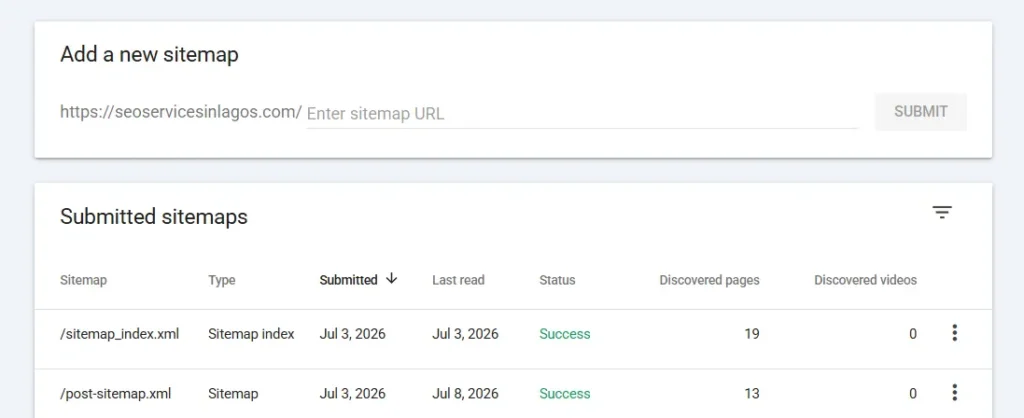
Once your sitemap is accurate, submit it again through Google Search Console so Google can process the latest version.
6. Poor Internal Linking
If a page has few or no internal links pointing to it, Google may struggle to find it. These are known as orphan pages, and they are among the most overlooked causes of pages not being indexed.
For example, imagine you publish a new service page but never link to it from your homepage, navigation menu, or related blog posts. Although the page exists, Google may not discover it quickly, especially if your website has few external backlinks.
Poor internal linking also increases crawl depth, which refers to the number of clicks required to reach a page from the homepage. Pages buried several levels deep are less likely to be crawled frequently.
7. Your Content Is Thin or Low Quality
One of the biggest reasons for ‘Google crawled currently not indexed’ is poor content quality.
Many people assume that if Google crawls a page, it will automatically index it. However, Google’s quality systems evaluate every page before deciding whether it deserves a place in its index.
If a page provides little value, Google may simply ignore it.
Examples of thin content include:
- Pages with only a few sentences.
- Automatically generated location pages with minimal changes.
- Product pages containing only manufacturer descriptions.
- Empty category pages.
- Placeholder content.
- Pages filled with repetitive keywords.
Similarly, publishing large amounts of AI-generated content without human editing can create problems if the content lacks originality, expertise, or usefulness.
8. Your Website Has Duplicate Content
Duplicate content makes it difficult for Google to determine which version of a page should appear in search results.
When multiple pages contain substantially similar information, Google often indexes only one version while excluding the others.
Common causes include printer-friendly pages, URL parameters, HTTP and HTTPS versions, WWW and non-WWW versions, similar product pages, copied manufacturer descriptions, and session IDs in URLs.
You may also encounter the Search Console status:
Duplicate Without User-Selected Canonical
This means Google found multiple versions of a page but chose a different URL as the canonical version.
9. Your Website Has Crawl Errors
Google cannot index a page it cannot access properly.
If your website experiences frequent Google crawl errors, indexing problems are almost inevitable.
Some of the most common crawl errors include:
- 404 Errors – A 404 error occurs when a page no longer exists. If your sitemap contains broken URLs, Google wastes crawl resources trying to access unavailable pages.
- Soft 404 Errors – A soft 404 happens when a page appears empty or provides very little useful content but still returns a successful status code. Google may decide that such pages are not valuable enough to index.
- 500 Server Errors – A 500 server error indicates that your server failed to process Google’s request. Frequent server failures reduce Google’s confidence in your website and may slow crawling significantly.
- DNS Issues – If Google cannot locate your server because of DNS issues, it cannot crawl your pages. These problems often arise from incorrect DNS configuration or temporary hosting outages.
- Redirect Chains – Excessive redirects can prevent Google from efficiently reaching the final destination page. Keeping redirects simple improves crawl efficiency.
10. Your Website Is Slow, or Your Server Is Unreliable
Website performance plays a significant role in Google search indexing.
Although page speed alone does not determine whether Google indexes a page, slow or unreliable websites make crawling much less efficient.
For example, if your hosting server repeatedly times out while Googlebot is crawling your website, Google may reduce how often it visits your pages.
This can delay indexing, especially for new content.
Poor hosting may also cause intermittent server errors, failed page requests, incomplete page rendering, and timeouts during crawling.
11. JavaScript Prevents Google from Seeing Your Content
Modern websites often use JavaScript to create interactive experiences. While this improves functionality, it can sometimes make it difficult for Google to access important content.
Although Googlebot can render JavaScript, it does not always process JavaScript-heavy websites perfectly. If your content only loads after JavaScript executes, Google may struggle to see it during crawling.
As a result, you may notice Google crawled currently not indexed, or Google discovered currently not indexed in Google Search Console.
Common JavaScript-related indexing issues include:
- Content that loads only after user interaction.
- Important links generated entirely with JavaScript.
- Client-side rendering delays.
- Broken JavaScript files.
- JavaScript errors preventing page rendering.
12. Your Canonical Tags Are Incorrect
A canonical tag tells Google which version of a page should be treated as the primary version.
When configured correctly, canonical tags help prevent duplicate content problems.
However, incorrect canonical tags can accidentally stop valuable pages from being indexed.
For example, if Page A incorrectly points its canonical tag to Page B, Google may ignore Page A completely.
This often happens after website redesigns, CMS migrations, ecommerce product imports, and SEO plugin configuration errors.
Review your canonical tags carefully to ensure every important page either:
References itself as the canonical version, or correctly points to another page where appropriate.
13. Your Website Has a Manual Action or Security Issue
Google wants to protect users from harmful websites.
If your website has been hacked, infected with malware, or violates Google’s spam policies, Google may reduce its visibility or prevent pages from being indexed.
Although this situation is less common, it should never be ignored.
Signs of security problems include unexpected redirects, spam pages appearing on your website, malware warnings, search console security alerts, and manual action notifications.
14. Your Site Architecture Makes Crawling Difficult
Even if your content is excellent, poor website structure can limit Google search indexing.
Google prefers websites with a logical hierarchy that helps both users and search engines find important pages quickly.
Problems often occur when:
- Important pages are buried deep within the website.
- Navigation is confusing.
- Categories overlap unnecessarily.
- Internal linking is inconsistent.
- Large sections of the website are isolated.
A good site architecture should resemble a pyramid.
For example:
Homepage
Main service or category pages
Subcategories
Individual pages and blog posts
This structure helps Google understand the relationship between pages while improving crawl efficiency.
15. Google Does Not Believe the Page Offers Enough Unique Value
Sometimes there is nothing technically wrong with a page.
Google crawls it successfully.
There are no crawl errors.
The page is accessible.
Yet Google still chooses not to index it.
Why?
Because Google’s quality systems may determine that the page does not provide enough unique value compared with similar pages already in its index.
This often affects:
- Very short articles.
- Pages copied from competitors.
- Product pages using manufacturer descriptions.
- Near-identical service pages targeting multiple locations.
- Pages that fail to answer users’ questions comprehensively.
Instead of asking, “How many words should this page have?” ask yourself:
“Does this page provide information that users cannot easily find elsewhere?”
High-quality pages usually contain original research, practical advice, real-world examples, expert opinions, helpful visuals, up-to-date information, and clear answers to common questions.
The more unique value your content provides, the more likely Google is to include it in its index.
6 Common Google Search Console Indexing Statuses
The Google Page Indexing Report contains several status messages that help explain why pages are or are not indexed.
| Status | What It Means | Recommended Action |
| Crawled – Currently Not Indexed | Google visited the page but chose not to index it. | Improve content quality, strengthen internal linking, and ensure the page provides unique value. |
| Discovered – Currently Not Indexed | Google knows the page exists but has not crawled it yet. | Improve crawlability, submit your XML sitemap, and strengthen internal linking. |
| Excluded by Noindex | The page contains a noindex directive. | Remove the noindex tag if you want the page indexed. |
| Duplicate Without User-Selected Canonical | Google found duplicate versions of the page. | Review canonical tags and consolidate duplicate content. |
| Blocked by robots.txt | Google cannot crawl the page because of robots.txt rules. | Update your robots.txt file if the block is unintentional. |
| Soft 404 | Google believes the page provides little useful content. | Expand the content or return the correct HTTP status code if the page no longer exists. |
Checking these reports regularly allows you to identify Google indexing errors before they affect your organic traffic.
How to Get Google to Index Your Website Faster
In our experience, most indexing issues are symptoms rather than the root problem. They often point to weaknesses in a website’s technical SEO, content strategy, or information architecture. Fixing only the indexing symptom without addressing the underlying cause usually leads to recurring problems.
If you have fixed the underlying issues, you can encourage Google to index your pages more quickly by following these best practices.
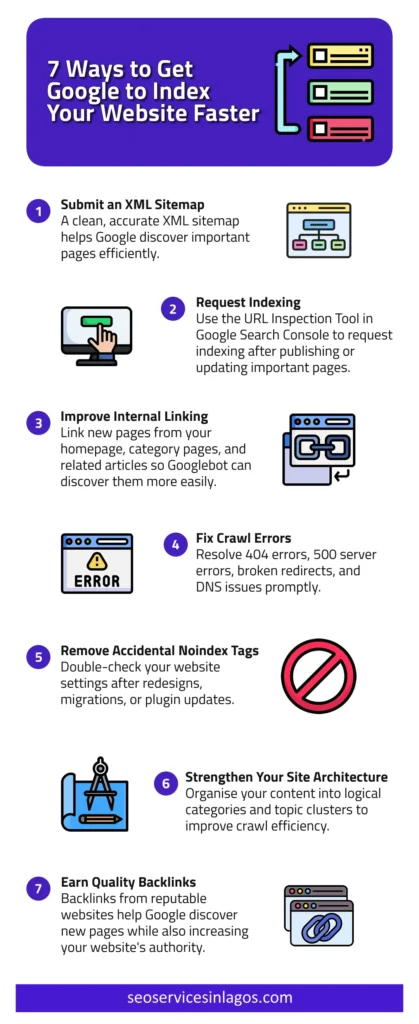
- Submit an XML Sitemap: A clean, accurate XML sitemap helps Google discover important pages efficiently.
- Request Indexing: Use the URL Inspection Tool in Google Search Console to request indexing after publishing or updating important pages.
- Improve Internal Linking: Link new pages from your homepage, category pages, and related articles so Googlebot can discover them more easily.
- Fix Crawl Errors: Resolve 404 errors, 500 server errors, broken redirects, and DNS issues promptly.
- Remove Accidental Noindex Tags: Double-check your website settings after redesigns, migrations, or plugin updates.
- Strengthen Your Site Architecture: Organise your content into logical categories and topic clusters to improve crawl efficiency.
- Earn Quality Backlinks: Backlinks from reputable websites help Google discover new pages while also increasing your website’s authority.
Read also: Why Is My Website Not Getting Traffic?
How to Check If Google Has Indexed Your Website
When we investigate indexing issues, we typically begin with Google Search Console to identify excluded pages. We then verify the findings using crawling tools such as Screaming Frog, inspect the robots.txt file, review XML sitemaps, and analyse server responses to pinpoint the underlying cause.
Here are three reliable methods to check if Google has indexed your website.
1. Use Google’s Site Search Operator
The quickest way is to search:
site:yourdomain.com
For example:
site:seoservicesinlagos.com
If Google returns your pages, they are indexed.
If no results appear, Google has either not indexed your website or removed it from its index.
2. Check the Google Search Console Page Indexing Report
The Google Page Indexing Report gives the most accurate information about your website’s indexing status.
It shows indexed pages, excluded pages, Google indexing errors, pages awaiting indexing, crawl issues, and reasons pages are excluded.
If your website has Google excluded pages, this report explains exactly why Google decided not to index them.
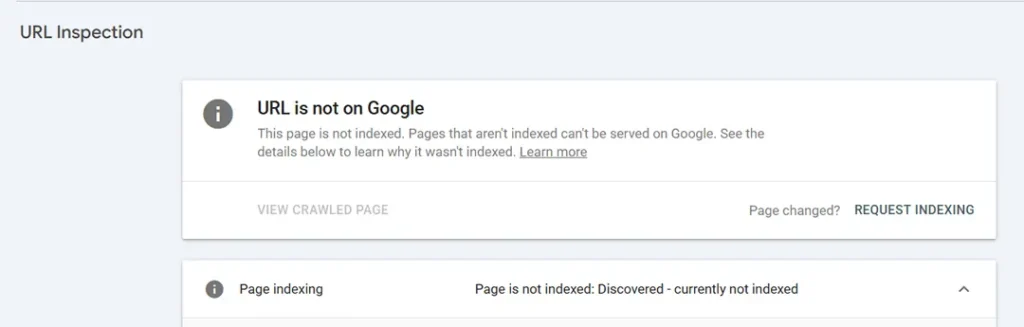
3. Use the URL Inspection Tool
The URL Inspection Tool lets you inspect any individual page.
It tells you whether:
- Google has indexed the page.
- Google can crawl the page.
- The page has crawl errors.
- The page is blocked.
- The page is eligible for indexing.
If necessary, you can also request indexing in Google Search Console after fixing any issues.
When Should You Hire an SEO Expert?
Some indexing issues are easy to fix.
Others require a detailed technical investigation.
If you continue experiencing SEO indexing problems despite following the recommendations in this guide, it may be time to seek professional SEO help.
Consider hiring an SEO expert if:
- Hundreds of pages remain excluded from Google’s index.
- Your website consistently reports Google crawl issues.
- Your pages remain crawled but not indexed for several months.
- Your website recently underwent a migration or redesign.
- You run a large ecommerce website with thousands of URLs.
- Your website relies heavily on JavaScript.
- Search Console reports persistent indexing errors that you cannot resolve.
A comprehensive website SEO audit can uncover hidden technical issues that prevent Google from indexing your pages and help you prioritise the fixes with the greatest impact.
Quick Website Indexing Checklist
Before worrying that Google isn’t indexing your website, confirm that:
□ Your website is verified in Google Search Console.
□ An XML sitemap has been submitted.
□ Important pages are not blocked by robots.txt.
□ No unintended noindex tags are present.
□ Pages return a 200 OK status code.
□ Important pages are linked internally.
□ Content is original and genuinely useful.
□ There are no unresolved crawl errors.
□ Canonical tags are correctly configured.
□ Your hosting server is stable and responsive.
FAQs About Indexing Problems
How long does Google take to index a website?
There is no fixed timeframe. Some pages are indexed within a few hours, while others take several weeks. Factors such as website authority, crawlability, content quality, internal linking, and backlinks all influence indexing speed.
Can Google index a website without a sitemap?
Yes. Google can discover pages through internal links and backlinks. However, an XML sitemap helps Google discover new and updated pages more efficiently, especially on larger websites.
Why are my pages crawled but not indexed?
This usually means Google visited your page but decided it did not meet its quality thresholds. Improving the content, strengthening internal links, and ensuring the page offers unique value often resolves the issue.